

Run Grona natively on Shopify
Grona installs as a native Shopify app, a theme app extension. No snippet, no theme-code edits. Enable it in your theme editor and Grona can redesign the product and collection pages you already have.
Under 2 minutes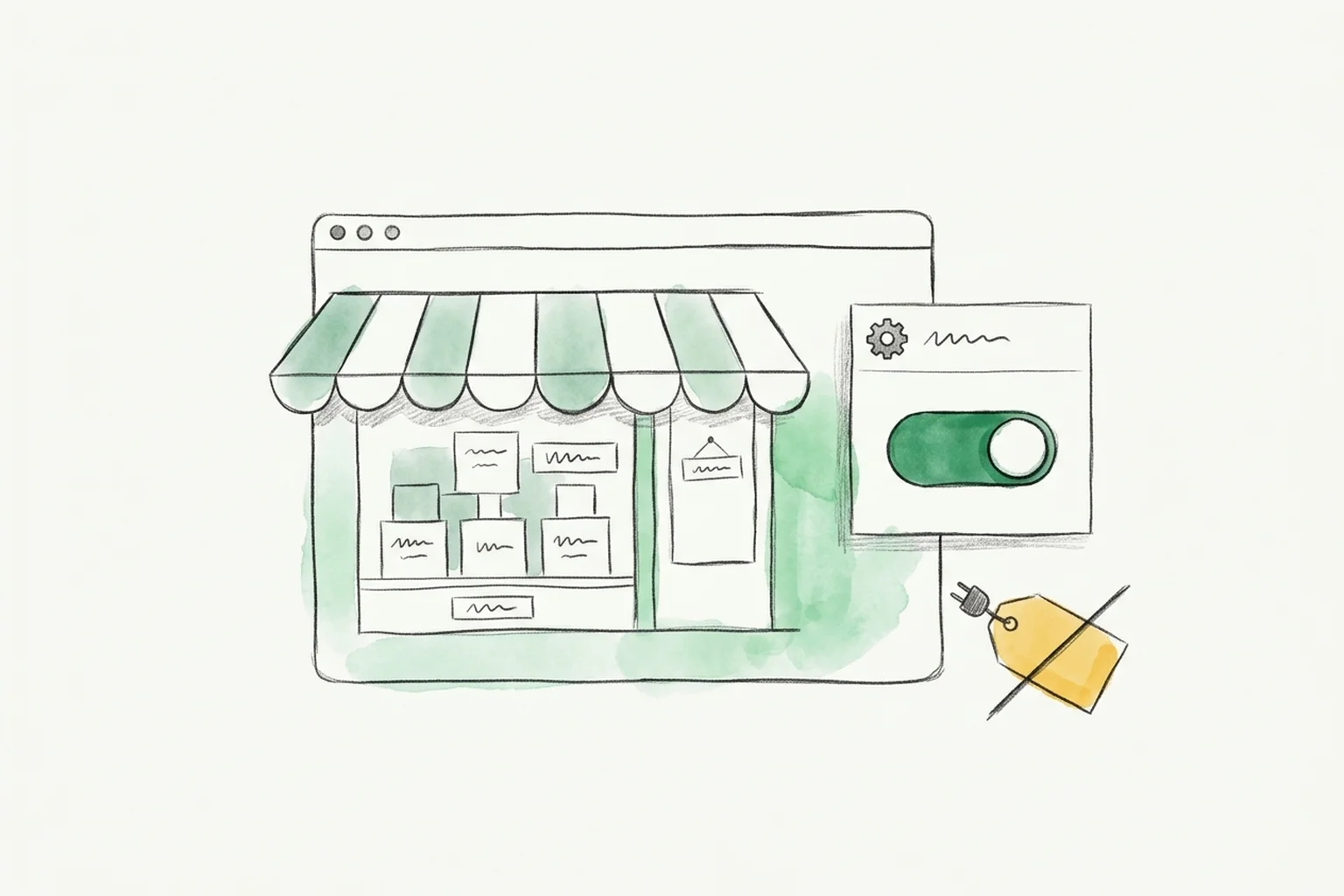
Why install
Why you need the Grona app
Grona's research and competitive intelligence features work without any code on your site. You can analyze competitors, review traffic data, and get AI-powered recommendations right from the dashboard.
To redesign your live store, generate whole new sections with images, and ship campaigns, Grona needs your permission. Enabling the Grona app grants that permission and connects your store to Grona's engine.
Live editing
Generate new sections, images, and styles on your existing product and collection pages through AI chat.
Campaigns
Run live campaigns and track results in real time.
Your choice of scope
Add to specific pages or your entire site.
Install
Step-by-step instructions
Enable the Grona app in your theme editor. The theme app extension activates across your store, with no theme code touched.
- 1
Add the Grona app to your store
Get the Grona app from the Shopify App Store, or open your install link. Grona connects to your store as a theme app extension, with no theme code to touch.
- 2
Open your theme editor
From your Shopify admin, go to Online Store > Themes, then Customize on your live theme.
- 3
Open App embeds
Open Theme settings > App embeds (the gear icon in the theme editor sidebar).
- 4
Toggle Grona on and Save
Toggle Grona on, then Save. Grona is now active across your store, with no theme code touched.
The app embed is a theme setting, not a code edit, so a theme update will not remove it.
Verify
Verify the app is active
Confirm the Grona app embed is enabled and loading.
- 1
Visit your live store in a browser.
- 2
Open DevTools (Network tab) and filter by "grona".
- 3
Confirm Grona's script loads at status 200.
- 4
In the theme editor, confirm the Grona app embed shows as enabled.
- 5
Open your Grona dashboard; your store shows as connected.
Platform jobs
What Grona redesigns on Shopify
Point Grona at the product and collection pages you already have. It generates the change in place.
Generate a new social-proof section, images included, on the product page you already have.
Redesign a collection page around your best sellers.
Ship a seasonal campaign variant for a drop, then switch it off from chat.
Give every ad group a landing-page variant only its traffic sees.
FAQ
Shopify questions, answered
The native-app specifics for your store.
Yes. Grona is a native Shopify app, a theme app extension, so it works with any theme and touches no theme code.
Ready to redesign the site you already have?
Paste your URL and watch Grona redesign it. Free to build, pay to go live.